
Runline
← Todas las guías

Caso de uso

¿Lo leo o me basta el resumen?

Guardo muchos más artículos de los que llego a leer. Así que monté un workflow que los lee antes que yo. Si un enlace merece mi tiempo, va a Telegram, que es mi lista de lectura. Si no, una notificación me da el resumen al momento, y a otra cosa.

·6 min de lectura·iPhone, iPad y Mac
Descarga el workflow
1

Por qué lo monté

Mi lista de «leer más tarde» tiene un problema: entra todo y no sale casi nada. La mayoría de los enlaces se quedan bien con un resumen. Unos pocos merecen de verdad veinte minutos tranquilos. Lo difícil no es resumir: es saber cuál es cuál.

Así que la pregunta que quería responder no era «¿qué dice esto?», sino «¿tengo que leerlo yo?». Eso es una decisión, y Runline tiene un paso hecho justo para decidir.

2

El workflow

Está colocado como un árbol. Puedes descargarlo arriba, abrirlo en Runline y cambiar lo que quieras. Los dos primeros pasos hacen de ajustes:

Text · language

«the same language as the article»

Text · interests

«iOS and Swift development, Apple platforms, AI models and agents for developers, Shortcuts and automation, indie apps»

Read Web Page

Abre el enlace que le llega y se queda con el texto de la página.

Text · brief

Junta lo que me importa y la página: «What I care about: {{interests}}», y debajo, {{page}}.

Decide · Jev (AI Gateway)

Lee el brief y responde read o summary.

Switch · verdict.worth

Un camino para cada respuesta.

Si es read

Text · toRead

«📖 Worth reading in full» y el enlace al artículo.

Send to Telegram

Lo envía a mi chat, que es mi lista de lectura.

Text · saved

«📖 Worth reading in full. The link is in Telegram.»

Si no

Ask · Apple on-device

«Summarize this article for a phone notification: one short sentence with what it says, then one short sentence on why it matters. Under 180 characters in total. Plain text, no markdown, no bullet points. Write the summary in {{language}}.»

Text · summaryNote

«📝» y el resumen.

Lo interesante es dónde va cada cosa. Telegram es mi lista de lectura, así que ahí solo llega lo que merece la pena leer. Lo demás solo quiero saberlo y olvidarlo: el resumen vuelve a Atajos, que me lo enseña como notificación. Cuando un artículo merece la pena, no se resume nada y el único modelo que trabaja es Jev.

Los dos caminos terminan con un texto corto, y ese es el resultado del workflow. Toda la lógica vive en Runline; el atajo solo tiene que enseñarlo.

3

Jev decide, Apple resume

Jev es un modelo de decisiones de TypeSafe que se usa a través de AI Gateway, de Vercel. No escribe texto: responde pasos Decide y Classify, rápido y barato, y dice cómo de seguro está. Es justo la forma de esta pregunta, elegir entre dos opciones.

Escribir el resumen es otro trabajo, así que lo hace el modelo de Apple, en el dispositivo. Cada paso elige su modelo; esa es la idea de Runline.

Tiene gracia: el enlace de ejemplo de este post, la guía de Helmcode sobre cómo optimizar el coste de la IA, defiende justo esto. Usar un modelo grande para elegir entre unas pocas categorías es tirar el dinero; para eso está un modelo de decisiones. Es de mi mundo y tiene sustancia, así que es de los que deberían acabar en Telegram.

4

Qué significa «merece la pena»

Un artículo bueno no basta: tiene que ser de mi mundo. Y si mucha gente lo está comentando, probablemente también merece mi tiempo. Así que Jev mira tres cosas: si se acerca a lo que me importa, si tiene sustancia y cómo ha reaccionado la gente.

Decide · worth

«Should I read this page in full myself, or is a summary enough? Read it only if it is close to what I care about and it is substantial. Weigh how people reacted when the page shows it: comments, likes, upvotes, stars or shares. If the page shows no reactions, treat that as neutral.»

  • read Close to what I care about and substantial: new ideas, data, code or nuance that a summary would lose, or a discussion with many comments, likes or upvotes
  • summary Far from what I care about, or its value fits in a few lines: news, an announcement, a familiar opinion, or something people barely reacted to

Las descripciones de las opciones son el prompt de verdad, así que escríbelas como se lo explicarías a un amigo. Tu mundo no es el mío: cambia el paso interests y Jev decidirá con tus temas.

¿Por qué un paso brief? La pregunta de un paso Decide no rellena los {{valores}}, así que Jev no podría leer {{interests}} desde ahí. En cambio, lee su entrada entera, y el brief se la da junta: lo que me importa y la página.

Jev solo ve lo que trae el HTML de la página. En Hacker News, Reddit o un foro, los comentarios y los puntos están ahí. En muchos blogs, los comentarios quedan fuera del artículo o se cargan con JavaScript, y los likes de X o Medium no vienen en el HTML. Por eso, sin reacciones a la vista, la pregunta le dice que no cuenten ni a favor ni en contra.

5

Prompts en inglés, resúmenes en tu idioma

Todos los prompts del workflow están en inglés: la pregunta de Jev, sus dos opciones y la instrucción del resumen. Aunque leo mucho en español, no mezclo idiomas en los prompts. Los modelos suelen seguir las instrucciones en inglés con más fiabilidad, sobre todo los pequeños, como el de Apple que corre en el dispositivo.

El idioma del prompt y el del resumen son cosas distintas. El primer paso es un Text llamado language, y la instrucción del paso Ask termina con «Write the summary in {{language}}». Por defecto dice «the same language as the article», así que un post en inglés trae un resumen en inglés. Cámbialo por «Spanish» y todos los resúmenes llegarán en español, venga de donde venga el artículo.

En cuanto una instrucción usa un {{valor}}, Runline deja de añadirle la entrada del paso por su cuenta. Por eso la instrucción nombra el artículo con {{page}}.

6

Desde la hoja de compartir

Abre el archivo en Runline para importarlo. Después:

  • En Models, activa AI Gateway y pega tu clave.
  • Toca el paso Send to Telegram y pega el token de tu bot (de @BotFather) y el ID de tu chat. Runline los guarda como secretos, nunca en el workflow.
  • Toca Use in Shortcuts y activa Send without asking. Si no, Atajos te pregunta antes de cada envío. Un workflow importado nunca la trae activada.

En Atajos, el mío tiene cuatro acciones:
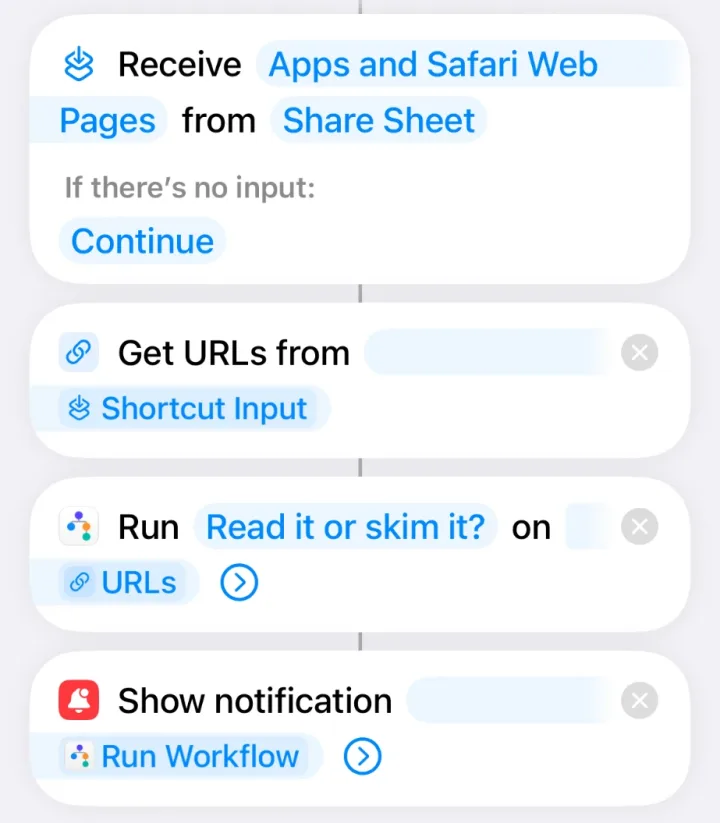
El atajo en Atajos: Receive Apps and Safari Web Pages from Share Sheet, Get URLs from Shortcut Input, Run Read it or skim it? on URLs y Show notification Run Workflow
  1. Recibir apps y páginas web de Safari desde la hoja de compartir. Así el atajo aparece al compartir una página, y no al compartir una foto.
  2. Obtener URL de la entrada del atajo. Safari comparte la página entera; esta acción se queda solo con el enlace.
  3. Run Workflow de Runline, con Read it or skim it? y esas URL.
  4. Mostrar notificación con el resultado. Ese «Run Workflow» azul no vuelve a ejecutar nada: es una variable con lo que devolvió la acción anterior, y Atajos la llama como la acción.

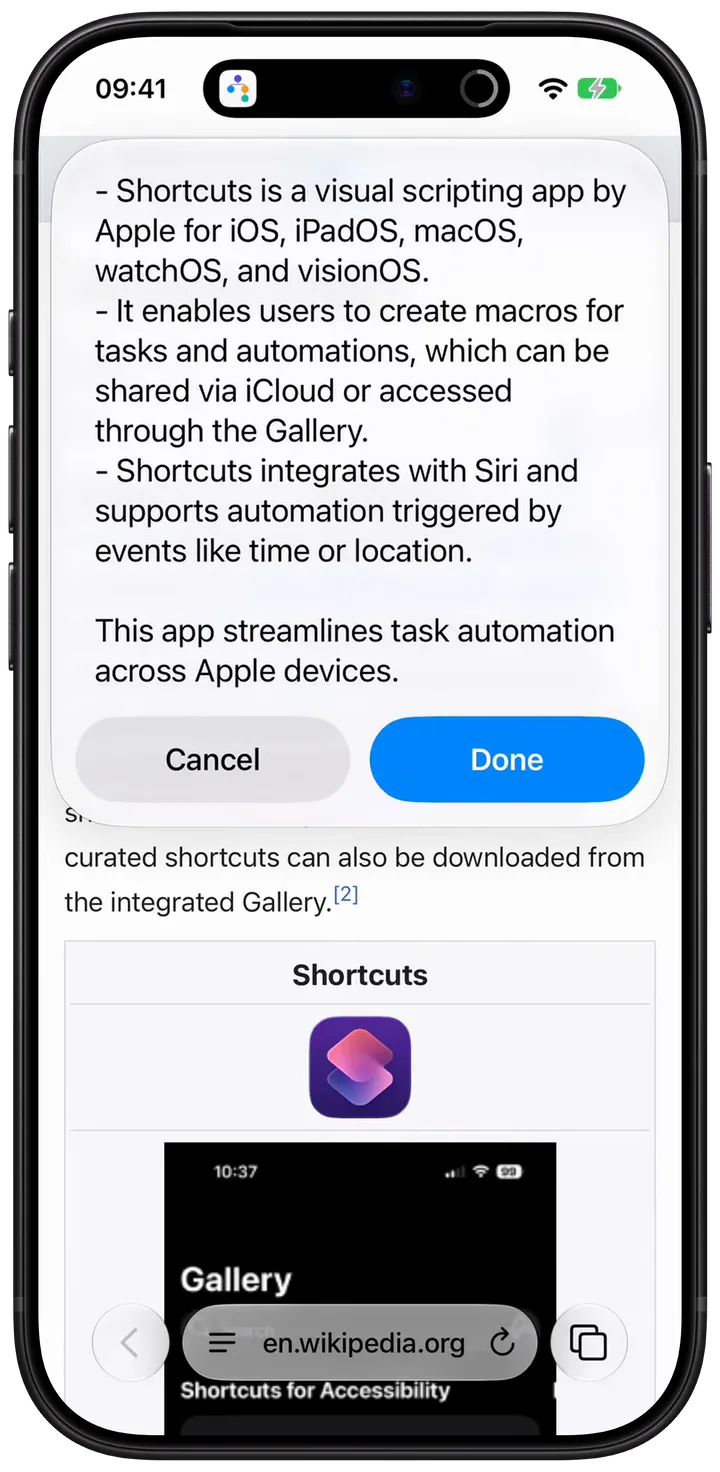
Nada más: ni condiciones ni diccionarios. Si merece la pena, la notificación te dice que el enlace te espera en Telegram. Si no, la notificación es el resumen. Por eso la instrucción del paso Ask pide dos frases cortas y menos de 180 caracteres: una notificación solo enseña unas pocas líneas, y un resumen más largo se corta.

Jev lee el texto de la página, así que ese texto va a Vercel y al proveedor del modelo. Runline te pide permiso antes de activar cualquier modelo fuera del dispositivo y te dice quién recibe los datos. El resumen se escribe en tu iPhone, y Runline no guarda artículos ni resúmenes salvo que actives «Keep inputs and outputs».

7

Hazlo tuyo

  • ¿Quieres guardar también los resúmenes? Añade otro Send to Telegram al final del camino del resumen y actívale el envío silencioso: llegan sin sonar, y solo vibran los que hay que leer.
  • ¿Prefieres el resumen largo? Pide tres puntos en el paso Ask y cambia Mostrar notificación por Mostrar alerta, que enseña el texto entero.
  • Para artículos muy largos, elige en el paso Ask un modelo más grande. Si está fuera del dispositivo, Runline te pide permiso antes de enviarle nada.
  • Ajusta las descripciones de read y summary hasta que Jev decida como tú.

Lo monté para mí, y poco a poco ha vaciado mi lista de «leer más tarde». Lo comparto por si te sirve a ti también. Si haces tu versión, cuéntamelo en X.
Atajos que entienden.

Runline es gratis en la App Store para iPhone y iPad. En Mac, su beta está abierta en TestFlight.

Descárgala en la App Store
← All guides

Use case

Read it, or is the summary enough?

I save far more articles than I ever read. So I built a workflow that reads them first. If a link deserves my time, it goes to Telegram, my reading list. If it doesn't, a notification gives me the summary right away, and I move on.

·6 min read·iPhone, iPad and Mac
Download the workflow
1

Why I built it

My read-later list has one problem: everything goes in, and almost nothing comes out. Most links are fine as a summary. A few really deserve twenty quiet minutes. The hard part isn't summarizing. It's knowing which is which.

So the question I wanted answered wasn't “what does this say?” but “do I need to read this myself?”. That's a decision, and Runline has a step made exactly for decisions.

2

The workflow

It's laid out as a tree. You can download it at the top of this page, open it in Runline and change anything you like. The first two steps work as settings:

Text · language

“the same language as the article”

Text · interests

“iOS and Swift development, Apple platforms, AI models and agents for developers, Shortcuts and automation, indie apps”

Read Web Page

Opens the link it receives and keeps the page's text.

Text · brief

Puts what I care about next to the page: “What I care about: {{interests}}”, and below it, {{page}}.

Decide · Jev (AI Gateway)

Reads the brief and answers read or summary.

Switch · verdict.worth

One path for each answer.

If it's read

Text · toRead

“📖 Worth reading in full” and the article's link.

Send to Telegram

Sends it to my chat, which is my reading list.

Text · saved

“📖 Worth reading in full. The link is in Telegram.”

Otherwise

Ask · Apple on-device

“Summarize this article for a phone notification: one short sentence with what it says, then one short sentence on why it matters. Under 180 characters in total. Plain text, no markdown, no bullet points. Write the summary in {{language}}.”

Text · summaryNote

“📝” and the summary.

The interesting part is where everything goes. Telegram is my reading list, so only what's worth reading lands there. Everything else I just want to know about and forget: the summary goes back to Shortcuts, which shows it as a notification. When an article is worth reading, nothing gets summarized and the only model that runs is Jev.

Both paths end with a short text, and that's the workflow's result. All the logic lives in Runline; the shortcut only has to show it.

3

Jev decides, Apple summarizes

Jev is a decision model from TypeSafe, served through Vercel's AI Gateway. It doesn't write text: it answers Decide and Classify steps, fast and cheaply, and tells you how sure it is. That's exactly the shape of this question, a choice between two options.

Writing the summary is a different job, so it goes to Apple's model, on the device. Each step picks its own model; that's the whole idea behind Runline.

Fittingly, the example link in this post, Helmcode's guide to AI cost optimization, makes this very point. Using a big model to pick one of a handful of categories is money wasted; that's what a decision model is for. It's from my world and it has substance, so it's the kind of link that should end up in Telegram.

4

What “worth reading” means

A good article isn't enough: it has to be from my world. And if lots of people are talking about it, it probably deserves my time too. So Jev looks at three things: how close it is to what I care about, whether it has substance, and how people reacted.

Decide · worth

“Should I read this page in full myself, or is a summary enough? Read it only if it is close to what I care about and it is substantial. Weigh how people reacted when the page shows it: comments, likes, upvotes, stars or shares. If the page shows no reactions, treat that as neutral.”

  • read Close to what I care about and substantial: new ideas, data, code or nuance that a summary would lose, or a discussion with many comments, likes or upvotes
  • summary Far from what I care about, or its value fits in a few lines: news, an announcement, a familiar opinion, or something people barely reacted to

The option descriptions are the real prompt, so write them the way you'd explain it to a friend. Your world isn't mine: change the interests step and Jev decides with your topics.

Why a brief step? A Decide step's question doesn't fill in {{values}}, so Jev couldn't read {{interests}} from there. It does read its whole input, though, and the brief hands it both together: what I care about, and the page.

Jev only sees what's in the page's HTML. On Hacker News, Reddit or a forum, comments and points are right there. On many blogs, comments sit outside the article or load with JavaScript, and likes on X or Medium aren't in the HTML at all. That's why, with no reactions in sight, the question tells it they count neither for nor against.

5

English prompts, summaries in your language

Every prompt in the workflow is in English: Jev's question, its two options and the summary instruction. I read a lot in Spanish too, but I don't mix languages in prompts. Models tend to follow English instructions most reliably, especially small ones like Apple's on-device model.

The prompt's language and the summary's language are two different things. The first step is a Text step called language, and the Ask instruction ends with “Write the summary in {{language}}”. By default it says “the same language as the article”, so an English post gets an English summary. Change it to “Spanish” and every summary arrives in Spanish, wherever the article comes from.

Once an instruction uses a {{value}}, Runline stops adding the step's input on its own. That's why the instruction names the article with {{page}}.

6

From the share sheet

Open the file in Runline to import it. Then:

  • In Models, turn on AI Gateway and paste your key.
  • Tap the Send to Telegram step and paste your bot's token (from @BotFather) and your chat ID. Runline saves them as secrets, never in the workflow.
  • Tap Use in Shortcuts and turn on Send without asking. Otherwise Shortcuts asks before every send. An imported workflow never brings it turned on.

In Shortcuts, mine has four actions:

The shortcut in Shortcuts: Receive Apps and Safari Web Pages from Share Sheet, Get URLs from Shortcut Input, Run Read it or skim it? on URLs, and Show notification Run Workflow
  1. Receive apps and Safari web pages from the Share Sheet. The shortcut then shows up when you share a page, and not when you share a photo.
  2. Get URLs from the Shortcut Input. Safari shares the whole page; this keeps just the link.
  3. Runline's Run Workflow, with Read it or skim it? on those URLs.
  4. Show notification with the result. That blue “Run Workflow” doesn't run anything again: it's a variable holding what the previous action returned, and Shortcuts names it after that action.

That's it: no conditions, no dictionaries. If it's worth reading, the notification tells you the link is waiting in Telegram. If not, the notification is the summary. That's why the Ask instruction asks for two short sentences under 180 characters: a notification only shows a few lines, and a longer summary gets cut off.

Jev reads the page's text, so that text goes to Vercel and the model's provider. Runline asks before turning on any model outside the device, and tells you who receives the data. The summary is written on your iPhone, and Runline keeps neither the articles nor the summaries unless you turn on “Keep inputs and outputs”.

7

Make it yours

  • Want to keep the summaries too? Add another Send to Telegram at the end of the summary path and make it silent: they arrive without a sound, and only the must-reads buzz.
  • Prefer a longer summary? Ask for three points in the Ask step and swap Show notification for Show Alert, which shows all of the text.
  • For very long articles, pick a bigger model in the Ask step. If it runs outside the device, Runline asks before sending it anything.
  • Tune the read and summary descriptions until Jev decides the way you would.

I built it for myself, and it has slowly emptied my read-later list. Shared in case it's useful to you too. If you make your own version, tell me on X.

Shortcuts that understand.

Runline is free on the App Store for iPhone and iPad. On Mac, its beta is open on TestFlight.

Get it on the App Store